Product: Omatic Cloud
Description: This solution provides instructions for how to create and run formulas using flat files that are locally loaded from your computer or gathered from an SFTP host.
Environment: Flat File, SFTP
Versions: All
Answer:
Many data services and business flows use SFTP (Secure File Transfer Protocol) to securely move data files from one location to another. These processes may be on-demand or on a routine schedule.
Omatic Cloud offers two methods for retrieving and using data files, such as Excel files:
- File Upload—Search a folder on your local machine, or drag-and-drop for on-demand file processing
- Secure FTP—Stay connected to an FTP folder, and set a schedule for automatic file processing
Before Getting Started
- If you are unsure about how to access the FTP service that your team uses, you may need to contact your IT professional.
- If you are hosted by Blackbaud, the following links will help.
How to Use SFTP as a Data Source
Follow the high-level steps below—each step has further detail:
- Connect your FTP server to Omatic Cloud.
-
- You only need to do this once to initially set up your FTP server connection. Once the connection is configured, you can easily create formulas without needing to make a new data source every time.
- Create and configure your formula.
- Run your formula.
Step 1: Connect Your SFTP Server to Omatic Cloud
Before creating a new data source for connecting to an FTP Server, make sure your server meets the following compatibility requirements:
- Omatic Cloud requires a Secure FTP protocol. The FTP service you use must use either SFTP (SSH) or FTPS. protocols. You can learn more about the different FTP protocols here.
- Omatic Cloud requires a unique subfolder for each formula you build. This is to minimize errors due to overlapping or conflicting formulas. The subfolder should only contain the data files you plan to upload (1 per scheduled run).
- Prior to building your formula, make sure the subfolder contains a single example file, which will be used to create formula's field map.
To connect your SFTP server to Omatic Cloud:
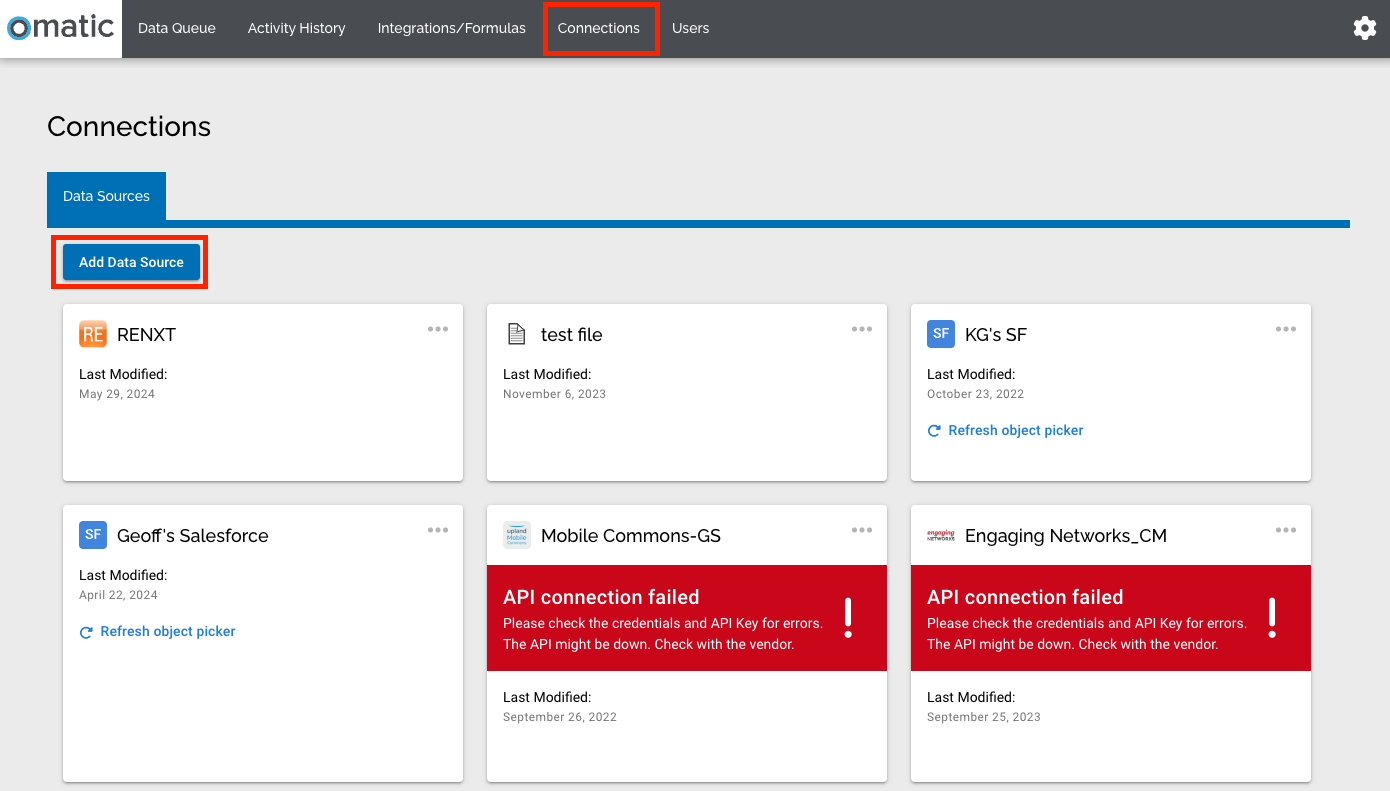
- On the Connections page, select Add Data Source.
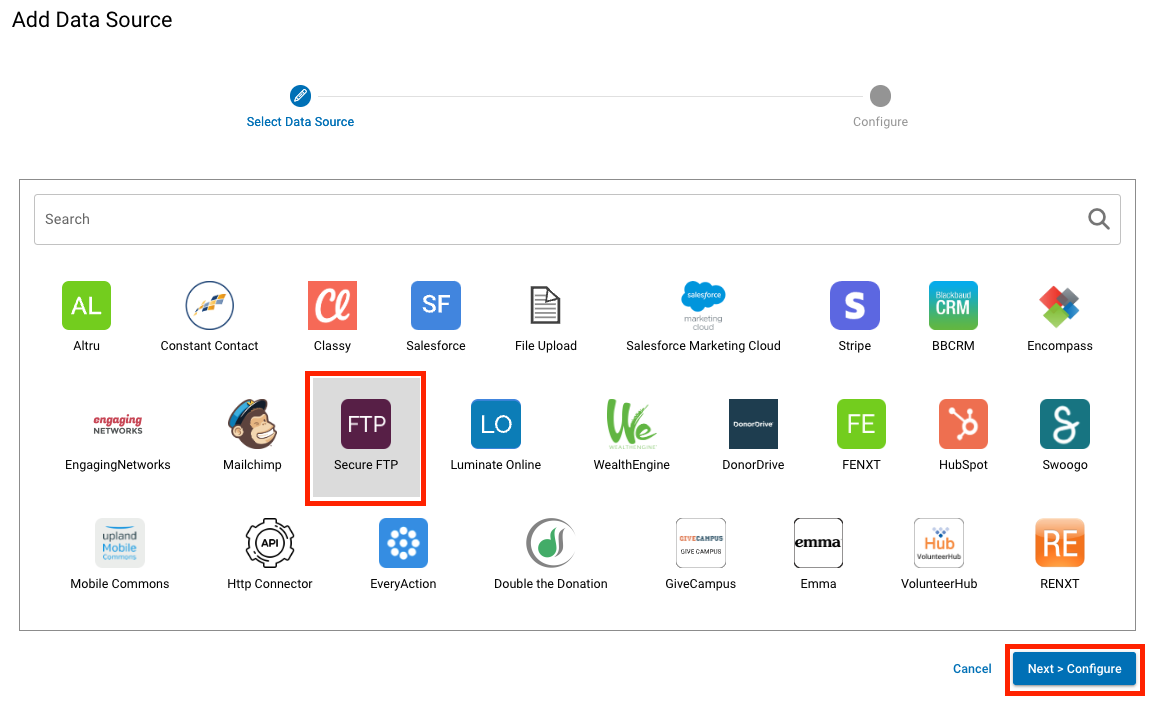
- In the Add Data Source window, select Secure FTP and then select Next > Configure.
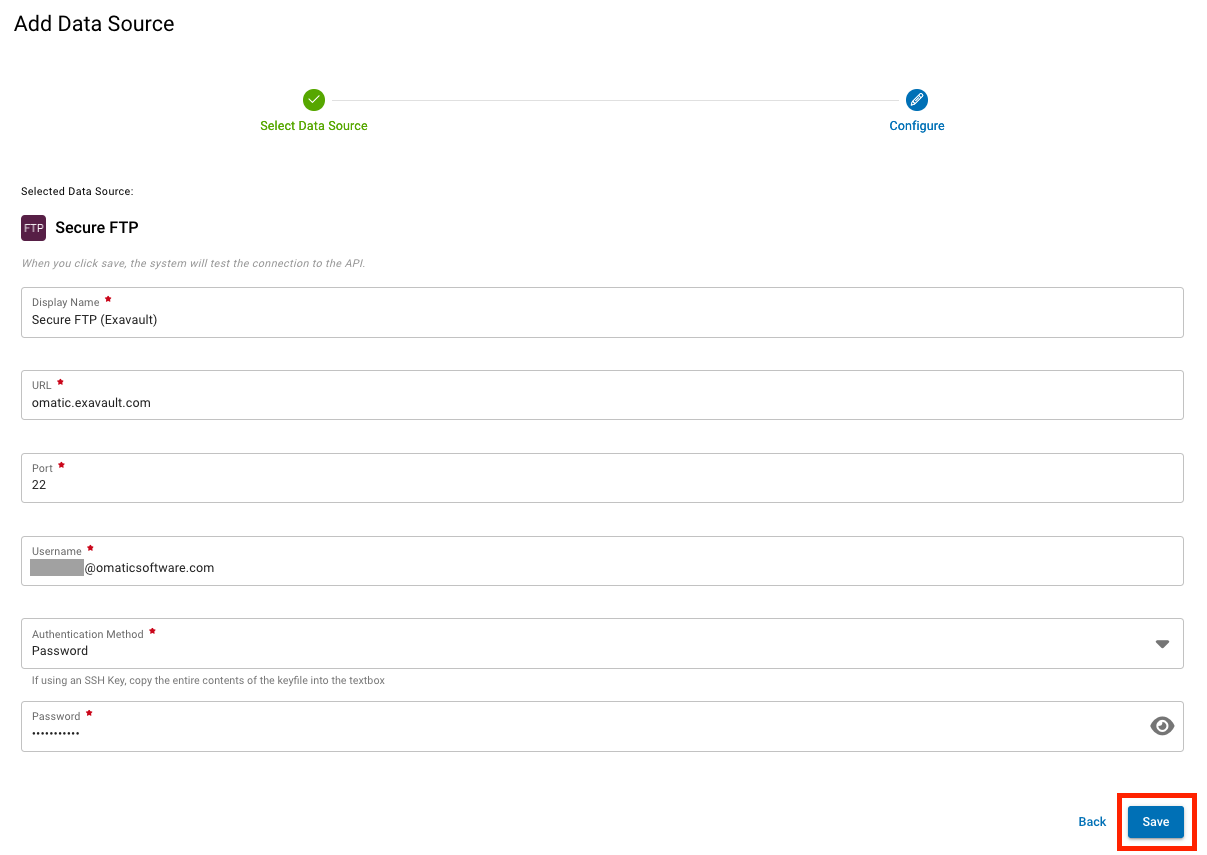
- Enter the following information, and then select Save to finish configuring your data source:
-
- Display Name: The name you wish to display for your Secure FTP source in Omatic Cloud
- URL: Your main URL—do not enter the path to your subfolder yet, that will be handled when you create the formula.
- Port: The port number is usually 22, but confirm with your IT professional.
- Username: The username you use for your FTP server.
- For Authentication method, select either Password or SSH key, then enter your chosen credential in the appropriate field.
Step 2: Create and Configure Your Formula
- Create a new formula from either the Data Queue or Integrations/Formulas pages.
- Select the existing Secure FTP option as your data source. If you do not have an existing SFTP source, follow the steps above to create one.
- Select your formula type and provide a name for it.
- On the Additional Settings (Source) page of the formula configuration, insert the path to the correct subfolder.
-
- The subfolder you use for this formula must stay the same, and it should only contain data for this formula. This may require you to adjust other business processes prior to creating or using the formula.
- When Omatic Cloud retrieves a file for processing, it will rename the file to add "Downloaded" and the date and time of retrieval as an extension.
- This prevents duplicate uploads of the same file, and it helps you to see when a specific file was retrieved.
- These files can remain in the folder indefinitely.
- If you want to rerun the file, you can simply remove the timestamp from the file name.
- If you want to open it and view the contents, you can simply download a copy from your FTP server, and then remove the timestamp from the file name.
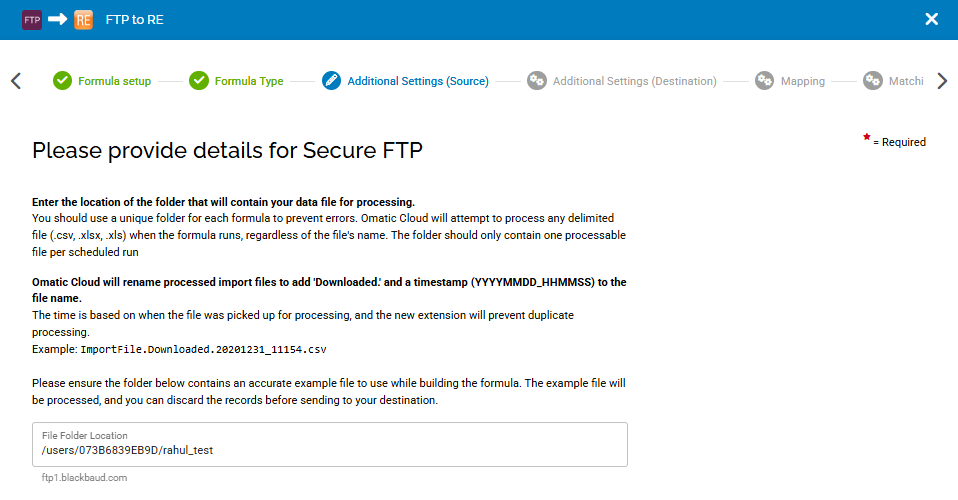
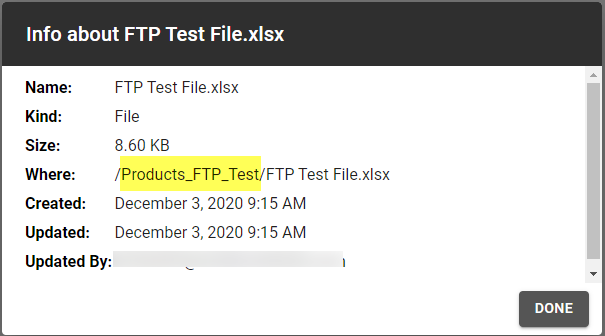
Tip: You can usually view the info/properties on a file in your subfolder to locate this information. If you don't see a button to display that option, try right-clicking on your example file in the folder to view details. Some FTP services use different roots for different users, so make sure you're logged in as the same username you used to create the data source.
Here's an example from one FTP service, ExaVault (the appearance will vary, based on your service):
- Complete the mapping, record match search, and routing settings just as you would for any other File Upload formula.
- Set the scheduled time you would like for Omatic Cloud to search for a file.
-
- Currently, you can select either daily or weekly pickups. We plan to expand scheduling options in the future, to allow for more frequent processing.
- If you're unsure about when the file will be available, set the schedule to weekly and review the notes below about running this formula on-demand.
Step 3: Run Your Formula
- Depending on your formula's schedule, Omatic Cloud will attempt to retrieve your file(s) from the specified FTP subfolder. It will retrieve, rename, and process the file(s) according to your formula settings.
-
- You can schedule your formula to run daily, weekly, or on a continuous basis to pull a single file or multiple files from your specified SFTP subfolder.
- To fully automate the process, you can adjust your routing settings to move as many records as possible to the Ready bucket and automatically send Ready records to your destination.
- Omatic Cloud will search for all eligible files that meet your parameters for the formula. If no files are present, it will check again on the next scheduled run time.